



Account Settings
Home Tab
To access your account settings configurations, from the VCC Admin Portal homepage, click the Account Settings tab in the left navigation and then Configuration. In the Home tab, you can configure the following settings:
Interaction plan PIN – A PIN is required to change the interaction plan remotely. Most likely used in a disaster situation. To change your PIN, from the home tab, find the Interaction plan PIN table. Select the phone number or queue you would like to change the PIN for. The list contains the numbers available in your account. Next, input a new PIN number. When finished, click Update. A pin and an active Dial In Config applet are needed if you would like to change your system’s routing remotely by calling a VCC “Useful telephone number.”
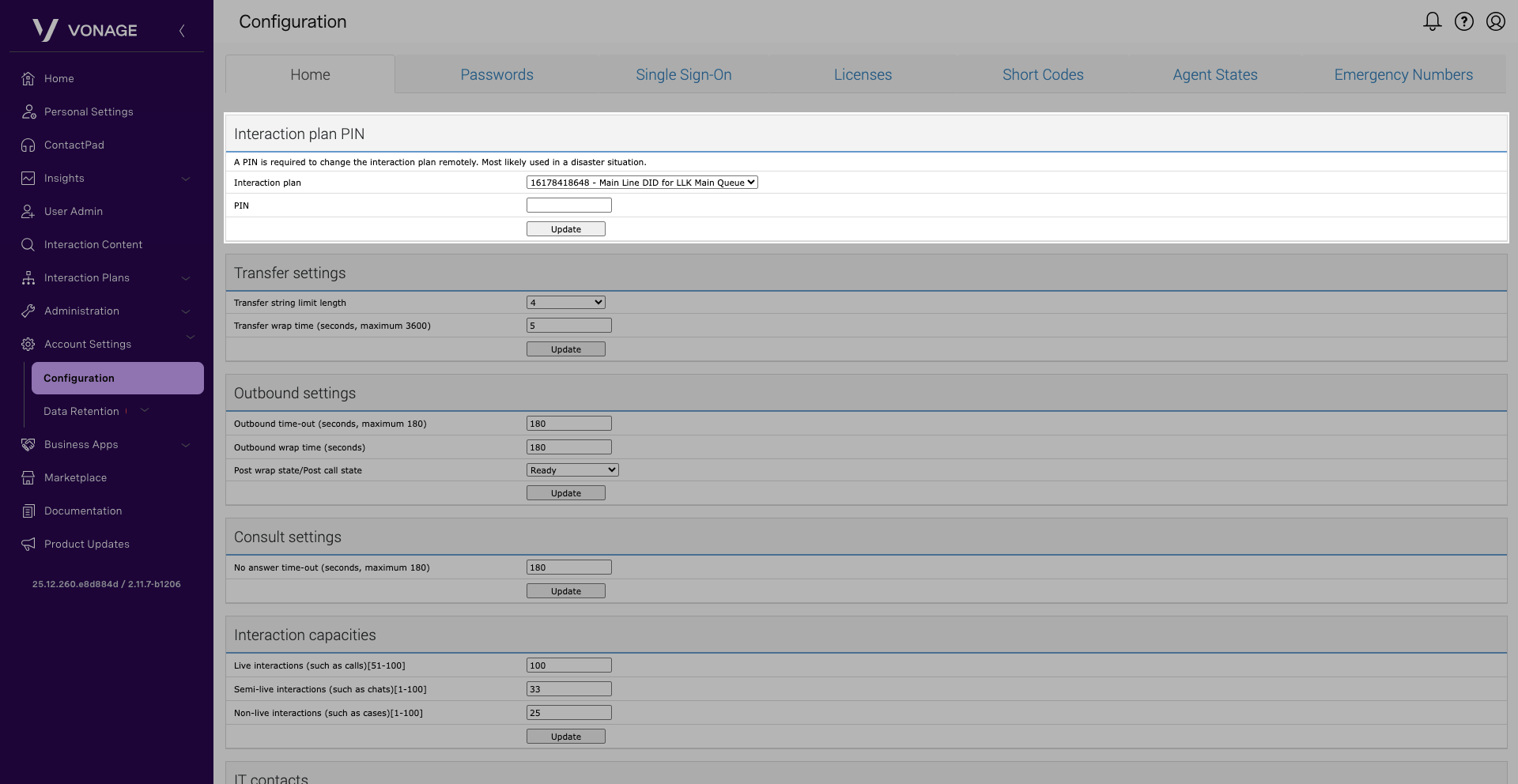
Outbound settings – To configure outbound settings, navigate to the appropriate table. You can configure the following settings:
- Outbound time-out: This specifies a time limit in which VCC tries to connect the agent’s outbound call. The default is 15 seconds, with a maximum of 180 seconds.
- Outbound wrap up time: This specifies a time limit for an agent to wrap up a call after the call has ended. The amount of time assigned here allows the agent to make any notes on the previous call account. The default is 180 seconds and can be increased.
- Post wrap state/Post call State: After the agent leaves the Wrap Up (Auto) state at the end of a completed call, the agent goes into the state that you specify in Post wrap state/ Post call state. Options are: Ready, Ready (Offline), or Leave Unchanged. If choosing the latter option, the agent will move back into the state they were prior to the call.
When finished, click Update to confirm your changes.
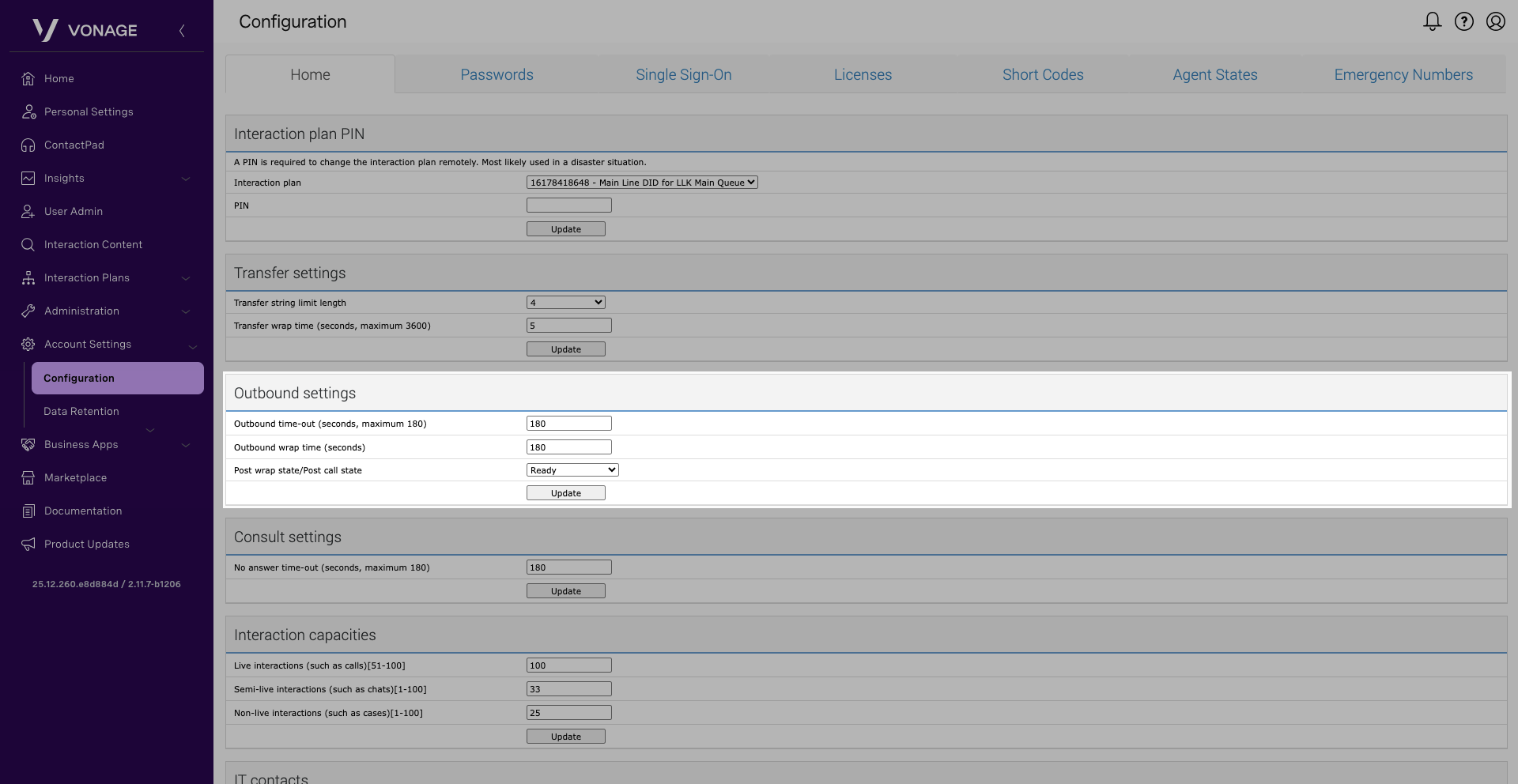
Consult settings – To configure consult settings, navigate to the appropriate table. You can configure the following setting:
- No answer time-out: When an agent clicks to consult with a third-party during a call, VCC attempts to connect the call to the specified agent or telephone number for the number of seconds you specify. The default setting is 45 seconds. The consult call times out after this time and an error message appears in the ContactPad. The allowed values vary from 5 seconds to 180 seconds.
When finished, click Update to confirm your settings.
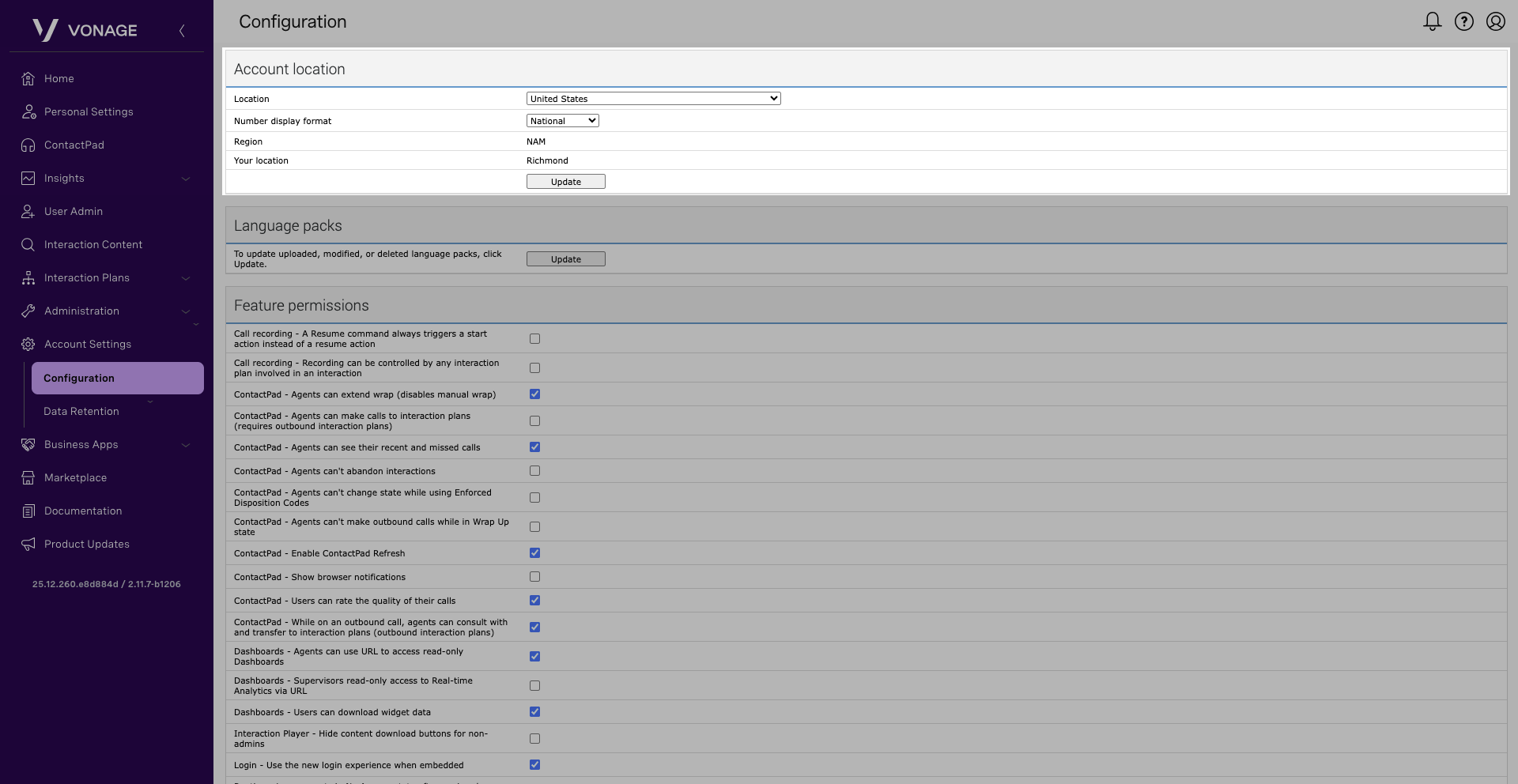
Account location – To configure your account location settings, navigate to the appropriate table. You can configure the following settings:
- Location: The system defaults to the United Kingdom.
- Number display format: This is the format in which VCC displays phone numbers in ContactPad. You have the option to choose National Format, which is your generic 10-digit number, or an International Format, which requires the following:
- a + sign to indicate that the number is international
- a country code, such as 44
- a region code, such as 1234
- an extension number, such as 567890
- Region: This is where your account is held in the cloud. This value cannot be edited.
- Your location: This displays your current location and cannot be edited.
When finished, click Update to confirm your settings.
API authentication token – To make use of the Vonage Contact Center APIs, and various other Vonage Contact Center features, you need to have your account key and API authentication token. To use the APIs, you must also get a bearer access token. To generate a new API Token, navigate to the appropriate table and click Generate token. A new token is generated, and any previous token will no longer work. You must update old tokens to the new token value.
Callback numbers – When an agent makes an outbound call, Vonage Contact Center presents a number to the person they are calling. This number is a callback number. To modify the callback numbers in bulk: these steps:
- Click Download to download the template. Complete the spreadsheet.
- To upload the completed spreadsheet, click Choose File. Locate the file you wish to upload and then click Open. Click Upload.
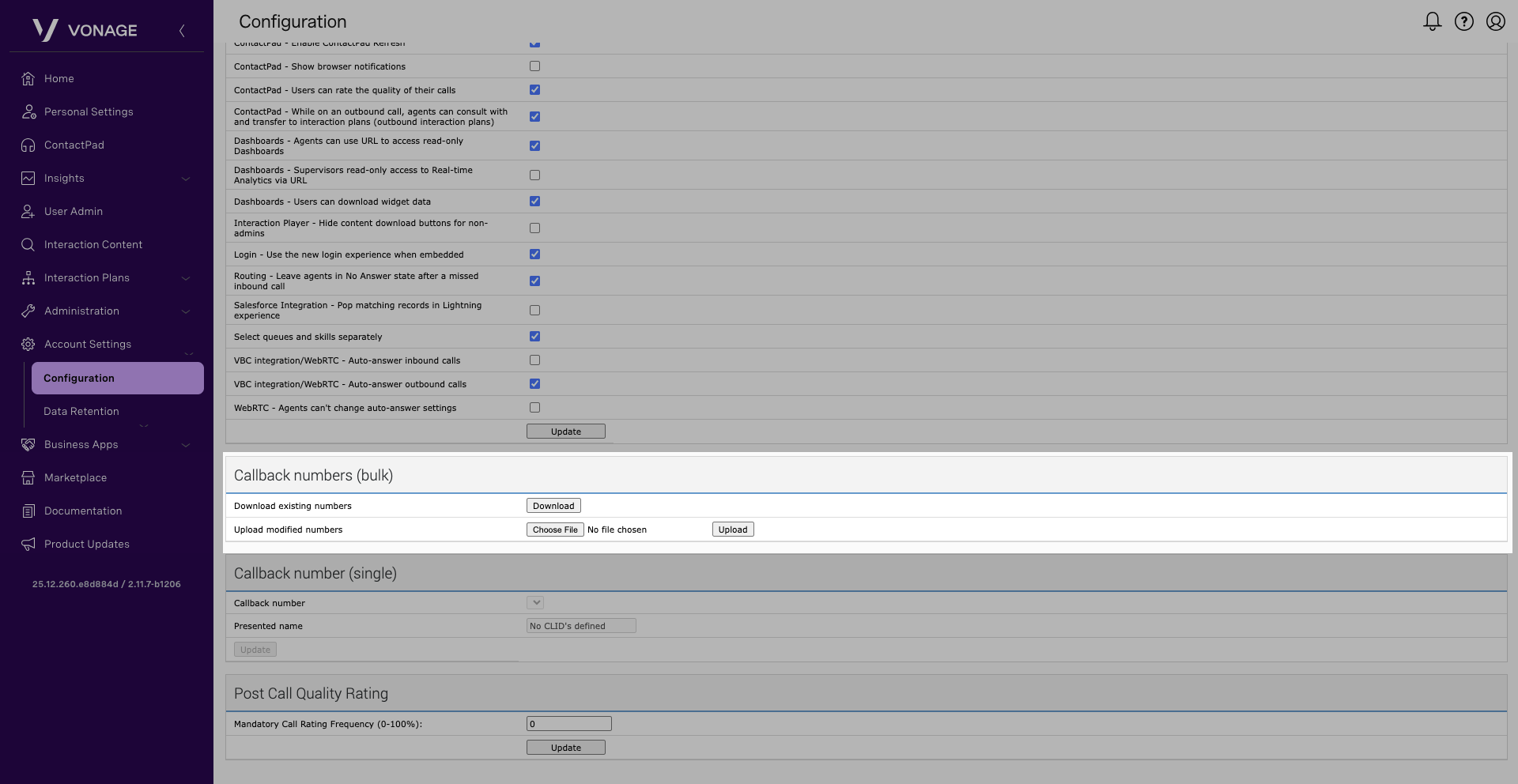
Note: Outbound callback numbers may only be added by a Vonage Voice Provisioner
Passwords Tab
A login policy can be configured on the VCC Admin Portal. This policy determines the minimum strength of a password for a user. A strong password can enhance the security of your VCC Admin Portal and ContactPad systems.
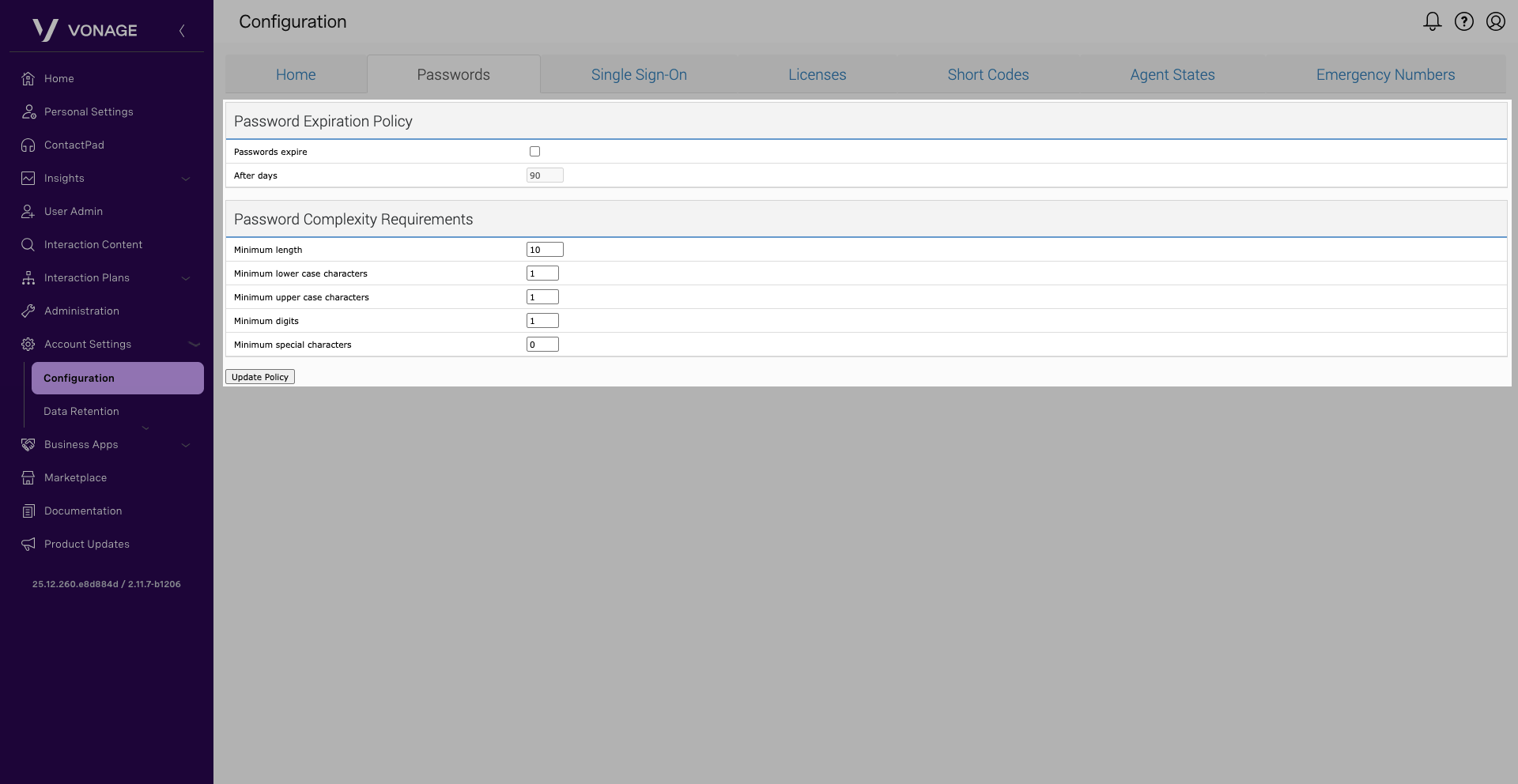
To configure these settings, open Account Settings, select Configuration, and then click the Password tab. You can configure the following:
- Password Expiration Policy – This determines how often the user must change their password. Make sure the checkbox is checked to enable this option. Once this is done, enter the time in days in which a user must change their password after. The default time is 90 days.
- Password Complexity Requirements – This determines how a user generates their password. You can utilize these settings:
- Minimum length – The minimum number of characters in the password. This cannot be set to fewer than 10 characters.
- Minimum lower case characters – The minimum number of lowercase letters in the password. The default value is 1.
- Minimum upper case characters – The minimum number of uppercase letters in the password. The default value is 1.
- Minimum digits – The minimum number of numeric characters in the password. The default value is 1.
- Minimum special characters – The minimum number of special characters in the password. The default value is 0.
When you’re done making any modifications, click Update Policy to save your changes.
Single Sign-On Tab
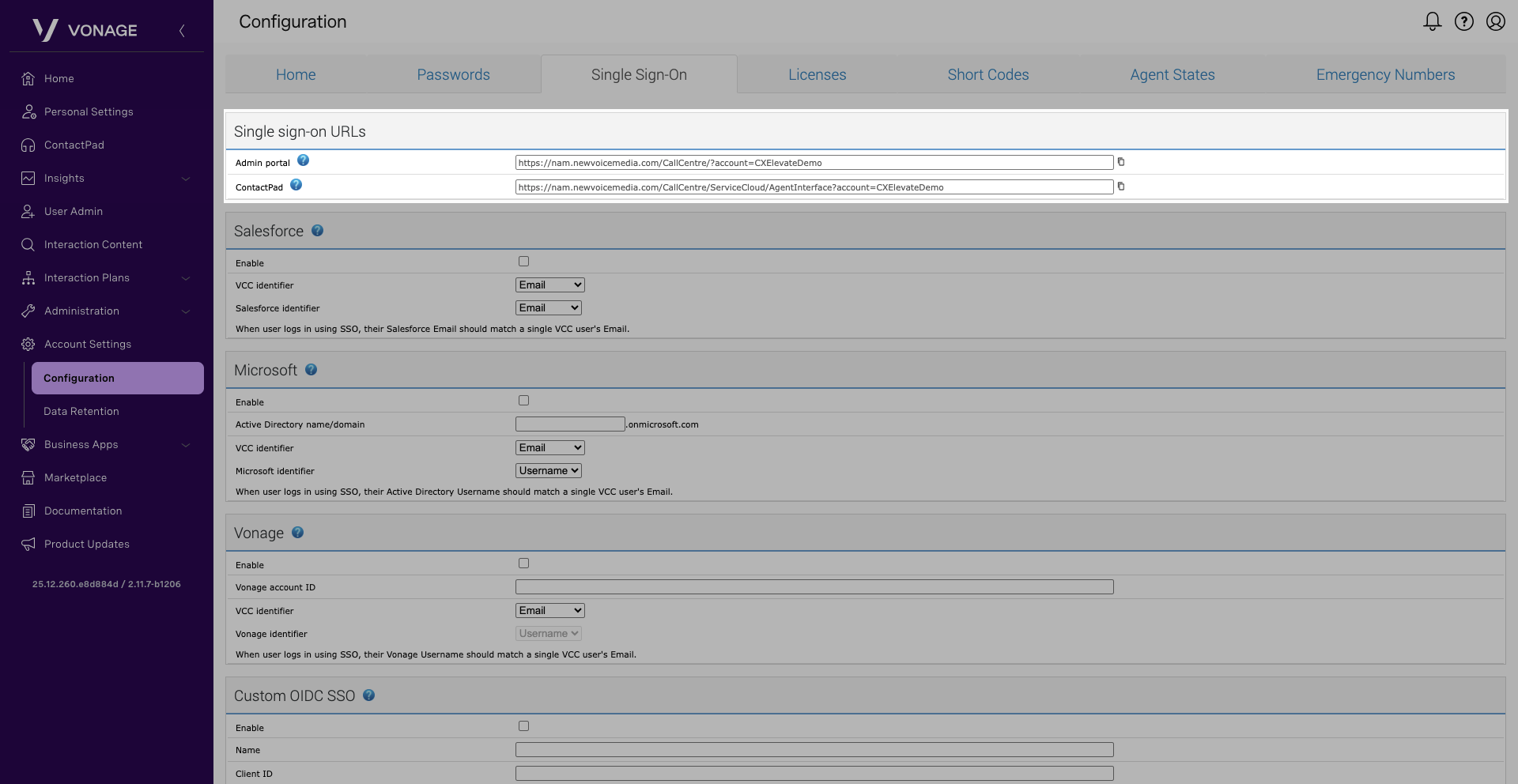
To configure these settings, open Account Settings, select Configuration, and then click the Single Sign-On tab. In the Single Sign-On URLs section, the URLs that VCC Admin Portal supervisors and agents must use to access the single sign-on pages are displayed for the Admin portal and ContactPad. Click the icon alongside the field to copy the contents of the field to the Clipboard.
Provide the admin portal URL to VCC admin portal users, both supervisors and non-Salesforce agents. These are the URLs you will use to log in to this application. We recommend that you bookmark these links for future use.
Note: To make the single-sign on page available to agents in ContactPad in Salesforce, paste the ContactPad URL into the CTI Adapter URL field in your call center settings in Salesforce.
Short Codes Tab
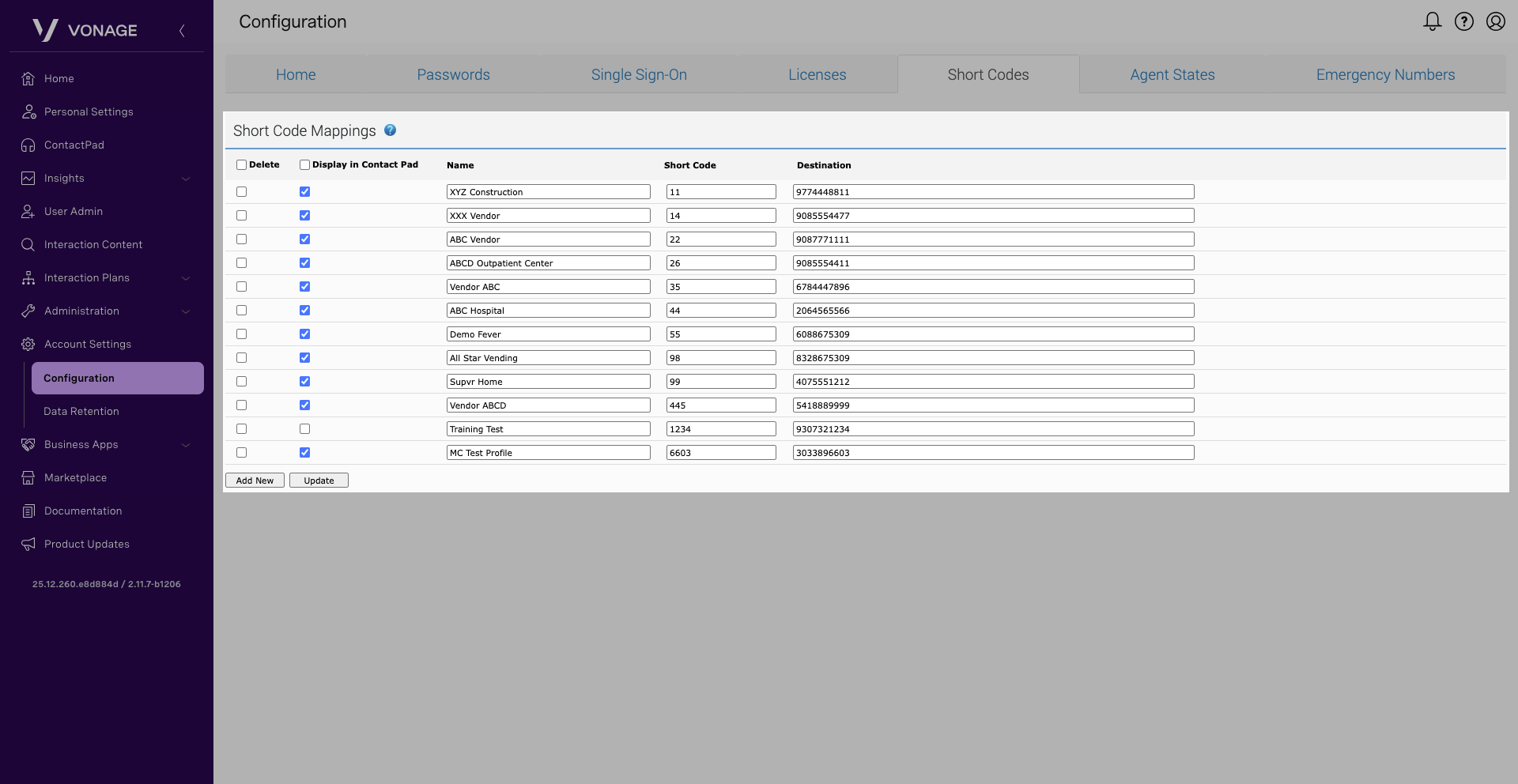
A shortcode is a number mapped to a destination. An agent may use the ContactPad to dial a shortcode to make a call or pass an existing call to the destination.
To configure these settings, open Account Settings, select Configuration, and then click the Short Codes tab. In the Short Code Mappings area, you may see some short codes already generated. To add a new shortcode, click Add New. Proceed to provide the following information:
- Name – The name can contain alphanumeric characters as well as the following:
- Underscore (_)
- Braces (‘(‘ And ‘)’)
- Slash (/)
- Apostrophe (‘)
- Ampersand (&)
- Period (.)
- Plus Sign (+)
- Colon (:)
- Semicolon (;)
- Comma (,)
- Hyphen (-)
- Space ( )
- Short Code – This is the number the agent will dial to reach a certain destination. The maximum length value is 10 digits, and the default value is four.
- Destination – This is the number the shortcode will direct to. These are intended to be used for transferring calls outside of Vonage Contact Center or for assisting an agent in placing an outbound call to the organization.
When configured, click Update.
Agent States Tab
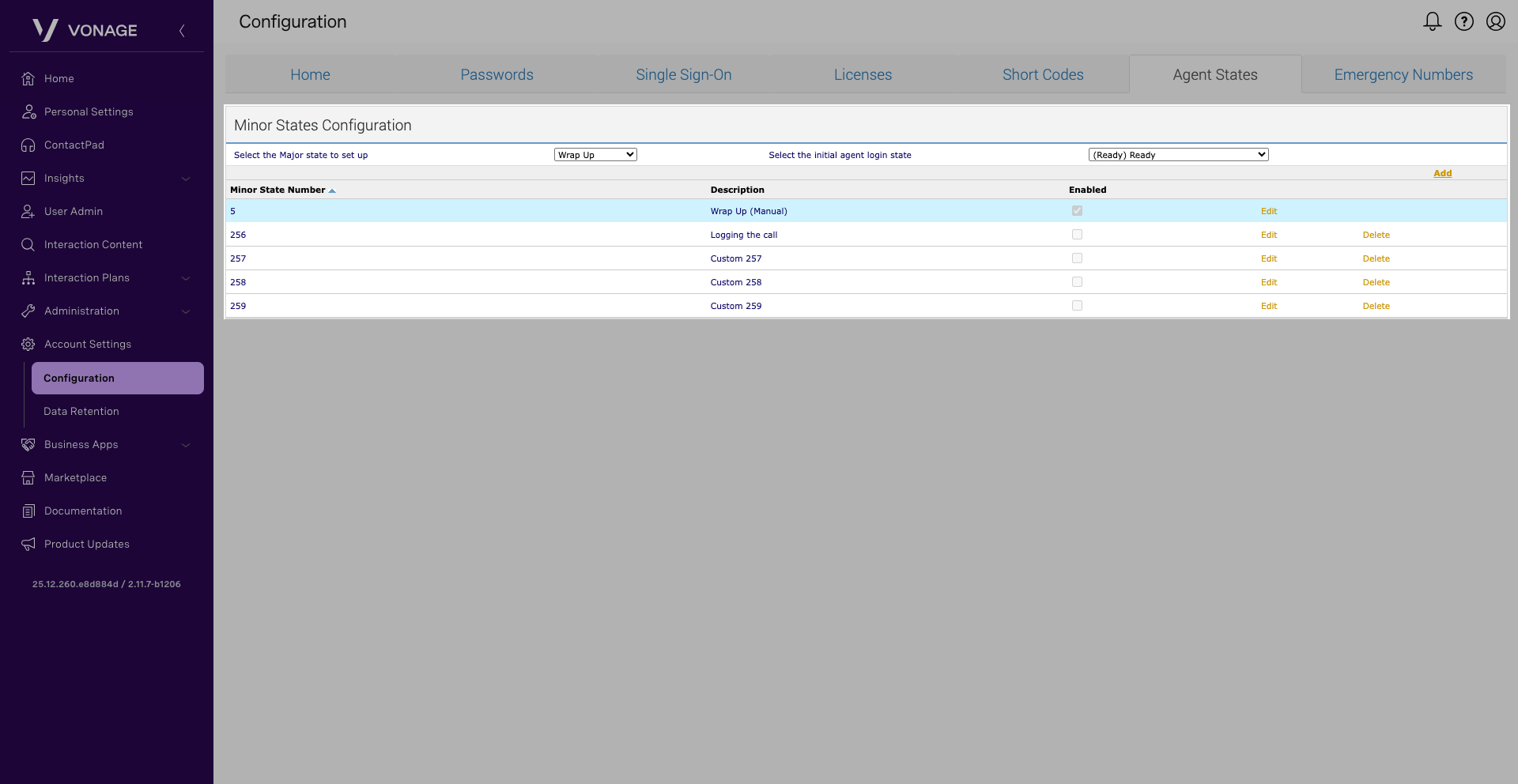
Agent states track an agent’s activity and make an agent available to take calls. To configure these settings, open Account Settings, select Configuration, and then click the Agent States tab.
In the Select the Major state to set up list, click the major state you are creating a new minor state for. Once in the major state, click Add. A new minor state appears on the list.
To edit, click the Edit button alongside the minor state. Change the name; this name will appear in the agent’s ContactPad. Select the Enabled checkbox to enable or disable the minor state. Click Save to save your changes.