


Interaction Content
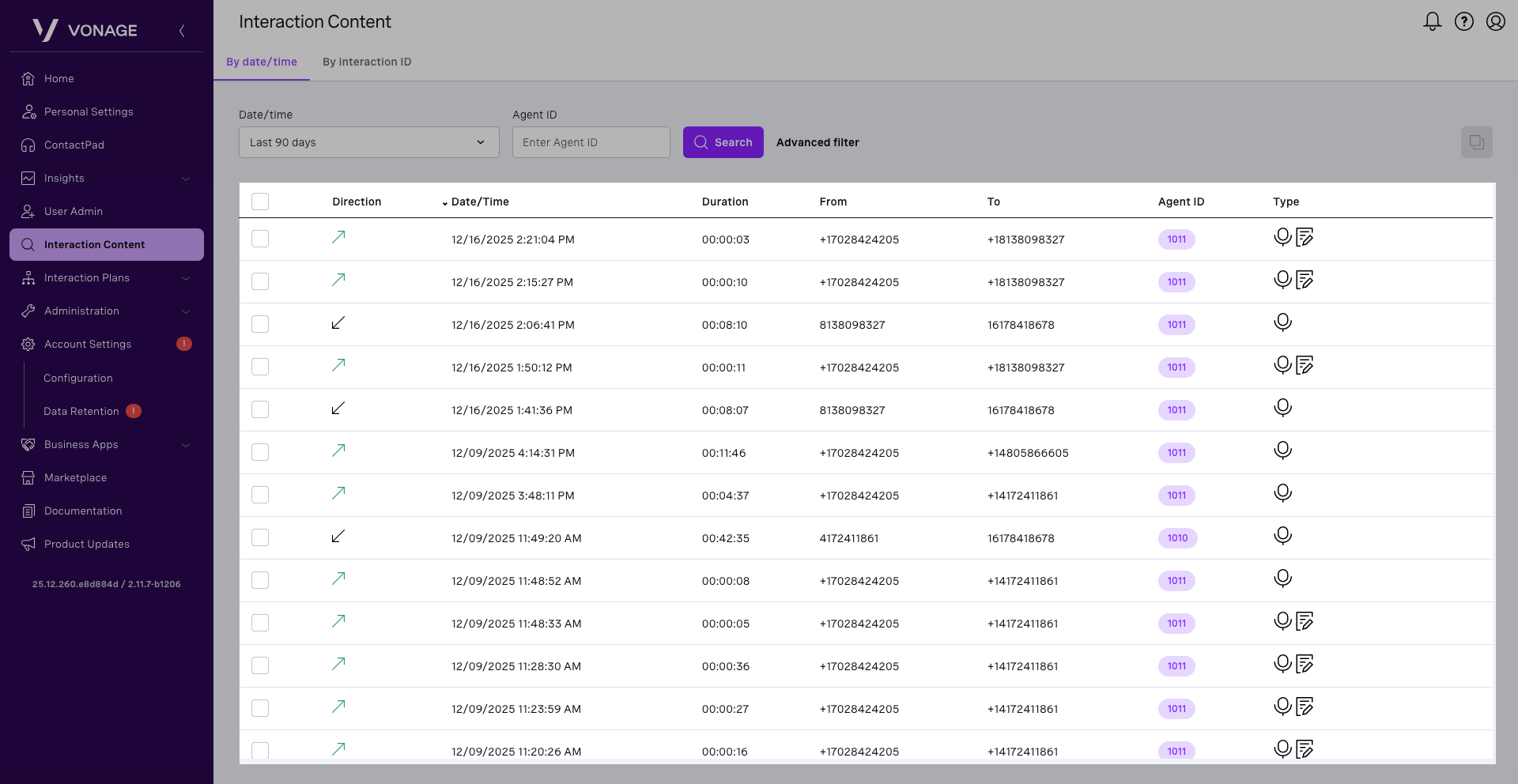
In the Interaction Content area of the VCC Admin Portal, you can search and view content from inbound and outbound interactions.
Available interaction content includes:
- Audio recordings, shown with a microphone icon
- Visual Engagement meeting recordings, when enabled
- Analyzed calls, with additional call data and transcripts when enabled
- Notes and disposition codes, when added during the interaction
The Interaction Content area is divided into two sections. The top section contains search parameters, and the bottom section displays the results of the last search.
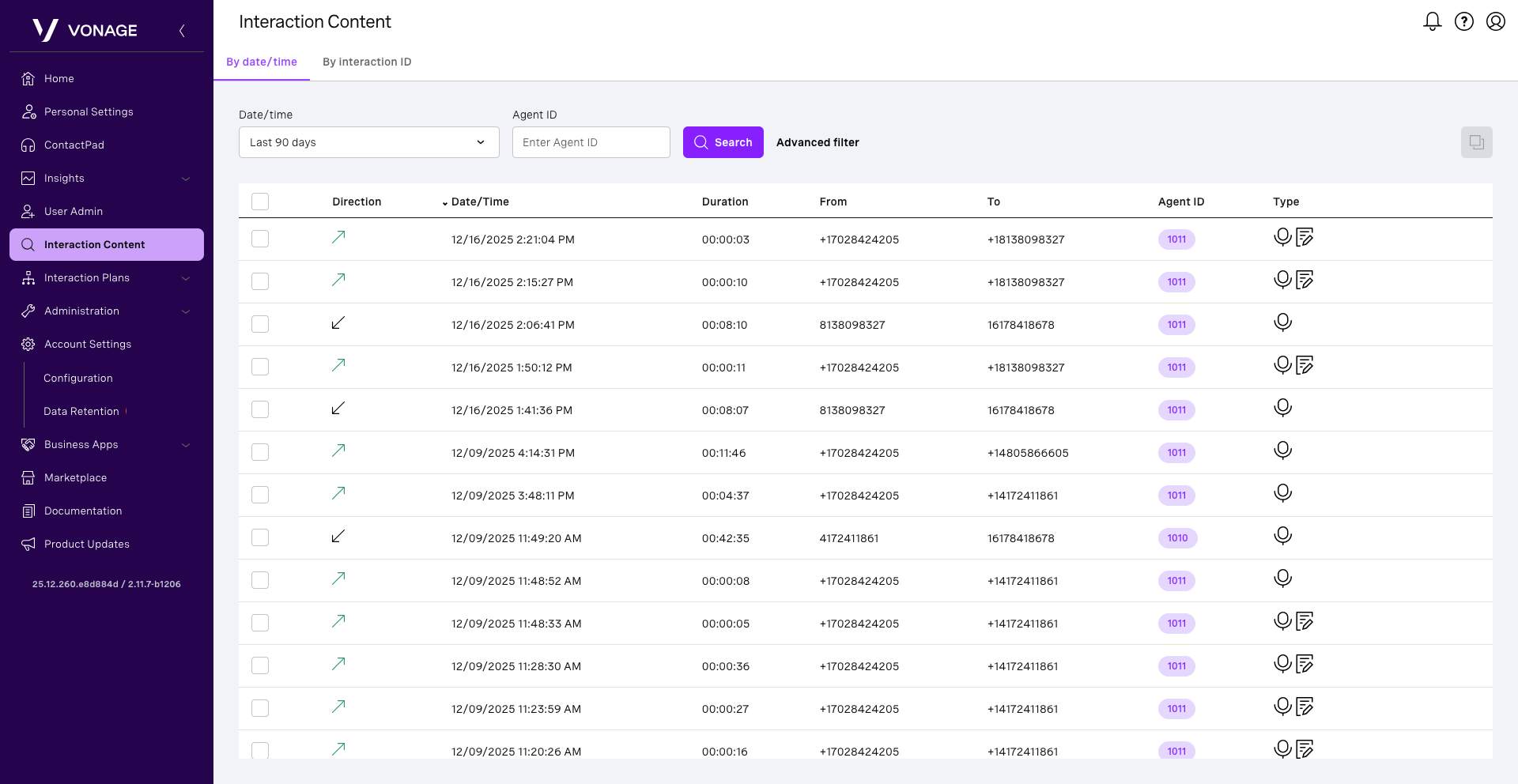
In the search criteria section, you can enter the criteria to narrow your search. The basic search allows to search by Date/time or by Agent ID. For advanced filters, click Advanced filter. The section consists of the following criteria:
- Start – The start date and time for the interaction content search.
- End – The end date and time for the interaction content search.
- Agent ID – Enter the ID of an agent to search for a specific agent’s interactions.
- Duration – Select the minimum duration (in hours, minutes, and seconds) of audio recordings you want to search for.
- From/To – To get the interaction content for calls made to or from a specific Vonage Contact Center account, customer, or agent telephone number or numbers, type the first part or all of the number or numbers you want to include in the results.
- Direction
- Inbound or Outbound for both inbound and outbound interactions.
- Inbound for inbound interactions only.
- Outbound for outbound interactions only.
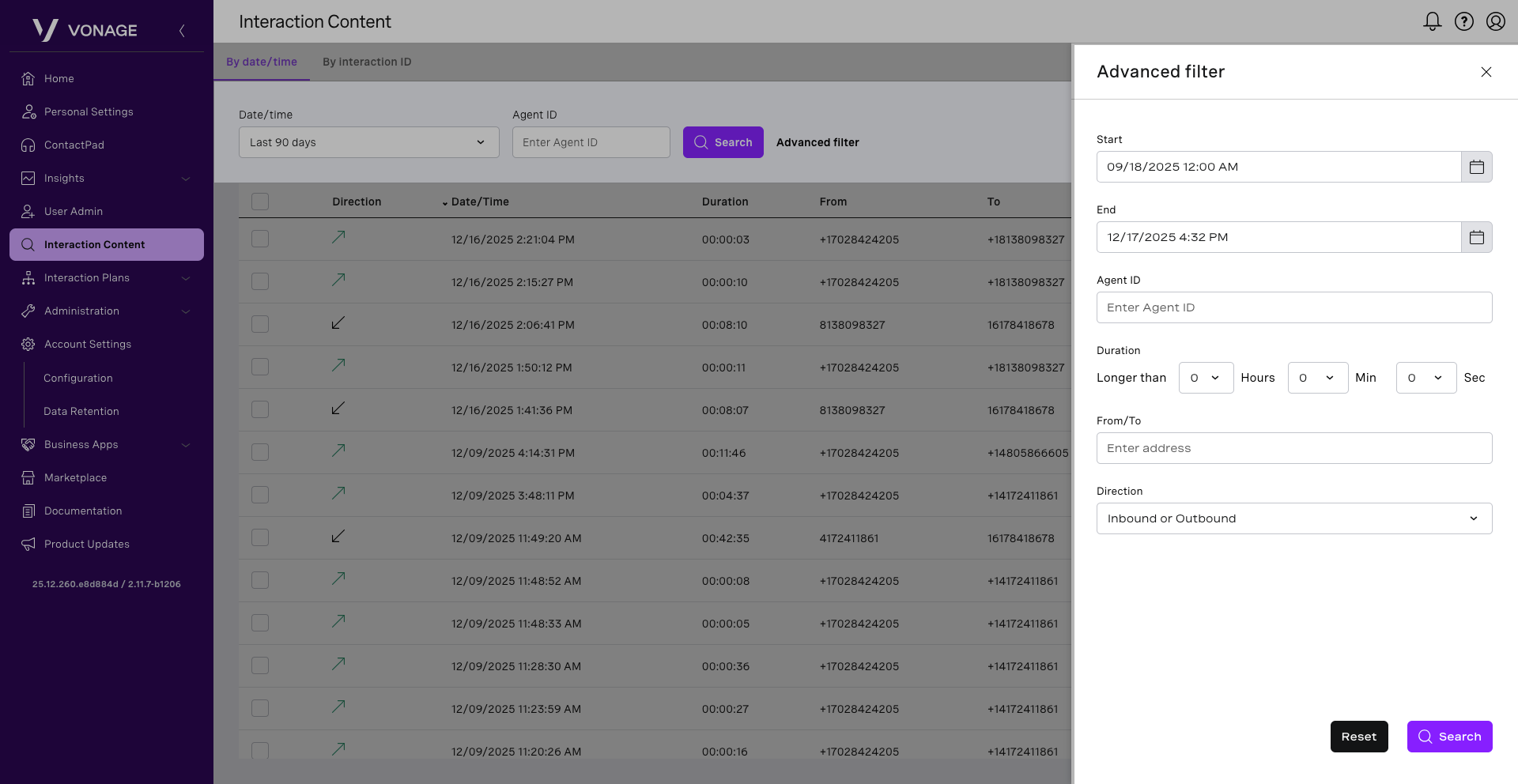
When complete, click on the Search button.
The results section displays the search results presented in a table.
Listen to Call Recordings
You can listen to and download any recordings within your account. To listen to call recordings, from the Interaction Content page, use the search criteria section to narrow your results. Hover over the result with a call recording icon in the Type column, and click the Open player icon.
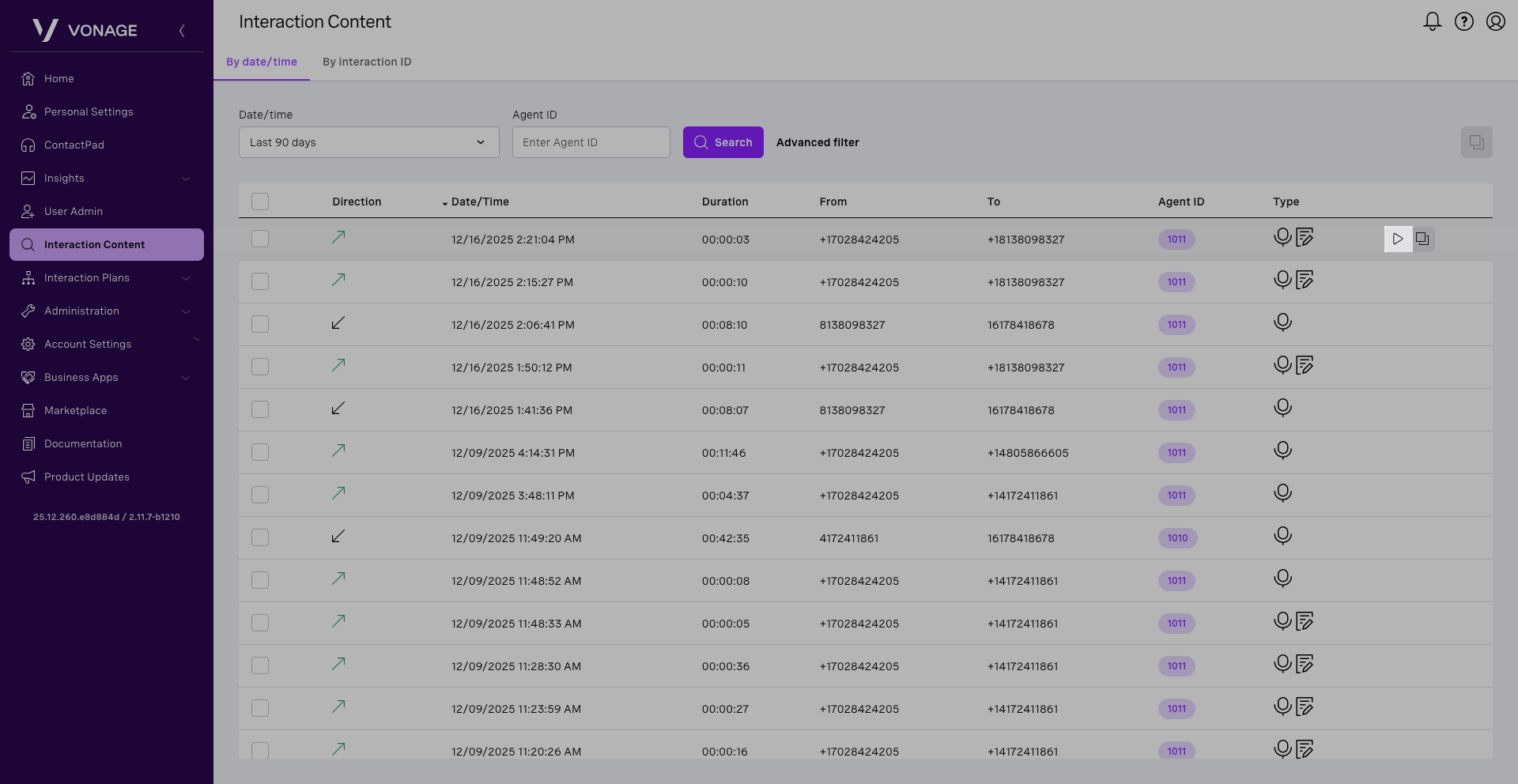
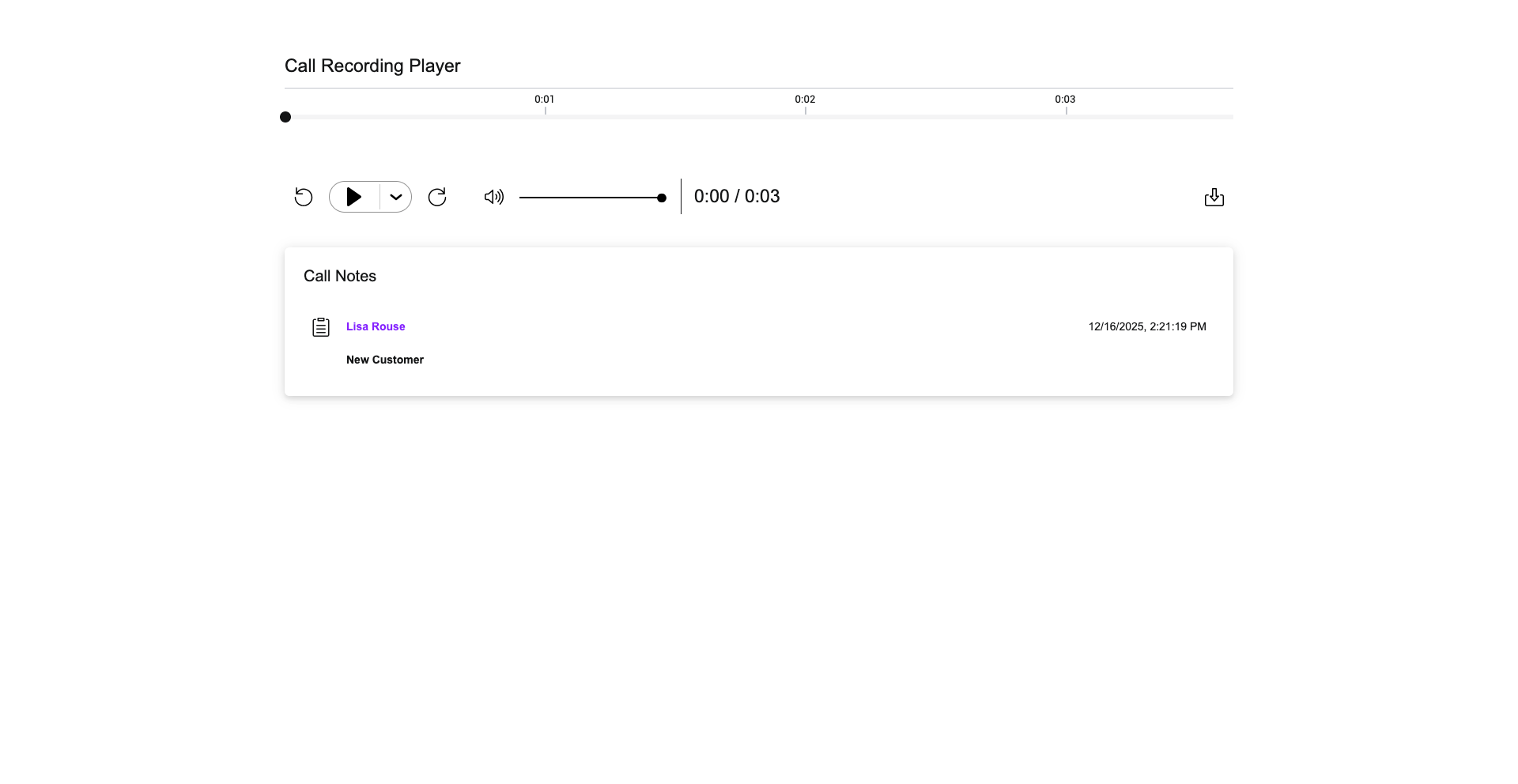
The Call Recording Player page appears, where you can listen to the recording. To download the recording, click the Download icon. Your system window will appear. Find the place you want to save the recording and click Save.