



Interaction Logging
If enabled for your account, Interaction Logging in Vonage Contact Center (VCC) allows supervisors to manage disposition codes used by agents to log the outcome of interactions. From this area, you can view default disposition codes, create new ones, update descriptions, assign specific codes to skills, and control whether codes are active or inactive. Agents can select active disposition codes during interactions.
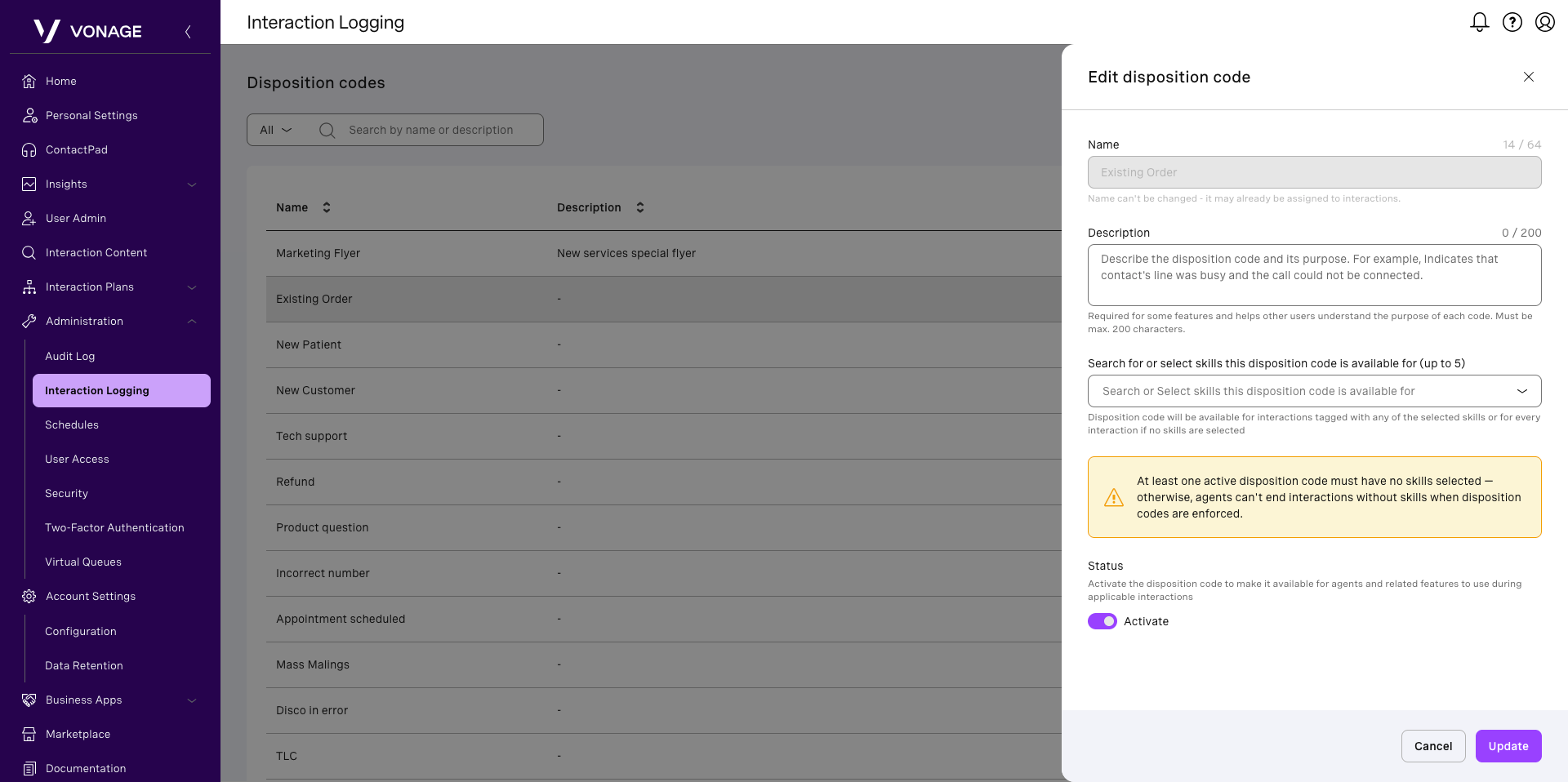
To access Interaction Logging, from the dashboard, click Administration and then select Interaction Logging. The Interaction Logging page appears and displays the list of disposition codes. The default codes and any previously created codes appear in the list.
You can manage large lists of disposition codes using built-in search and filtering tools:
- Search: Type part of a disposition code’s name or description in the Search by name or description field. The list filters as you type.
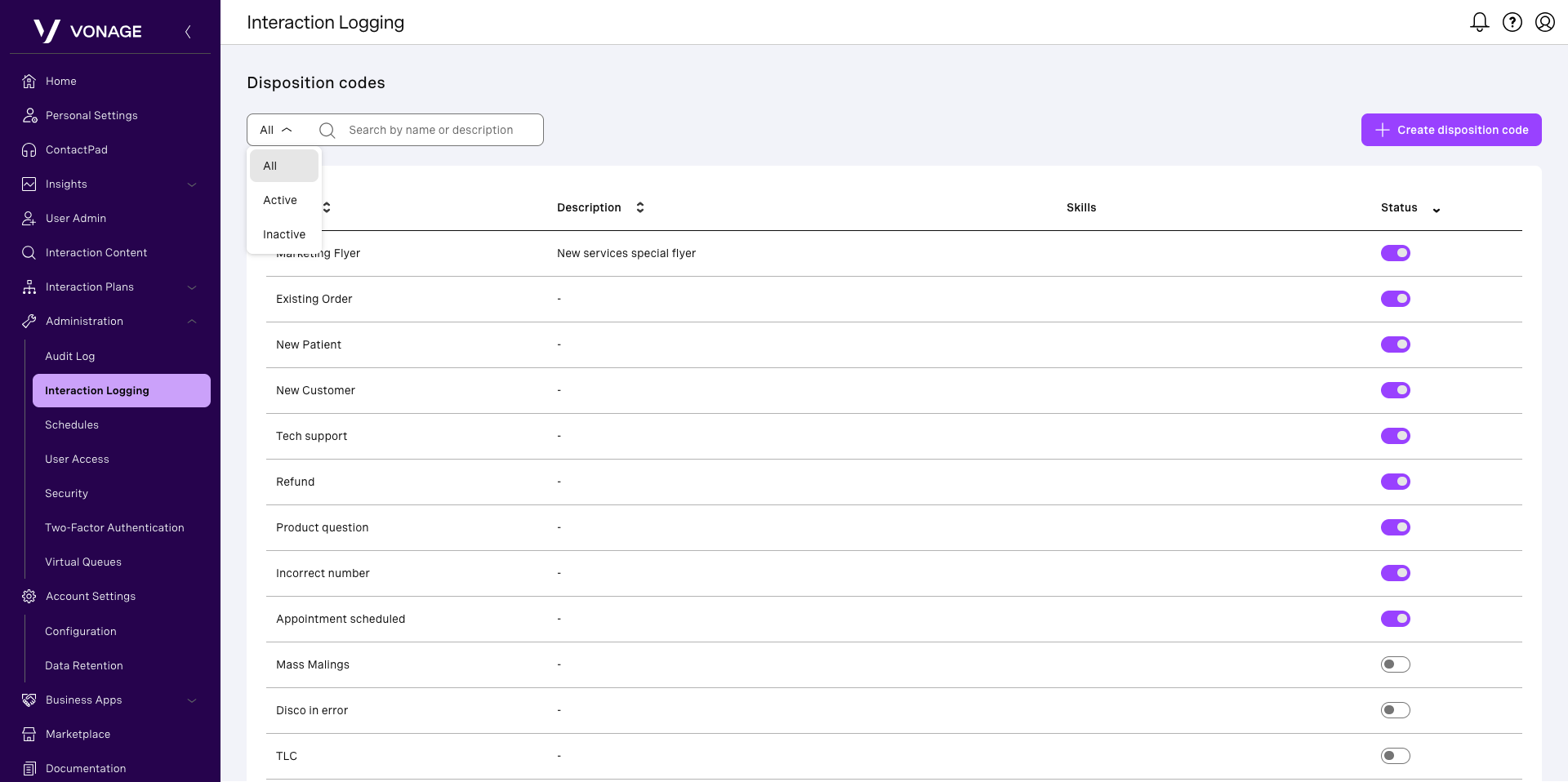
- Filter: Select Active, Inactive, or All to control which codes are displayed.
- Sort: Click the column headers to sort by name, description, or status.
Create a disposition code
To create a new disposition code:
- Click Create disposition code. A side panel opens.
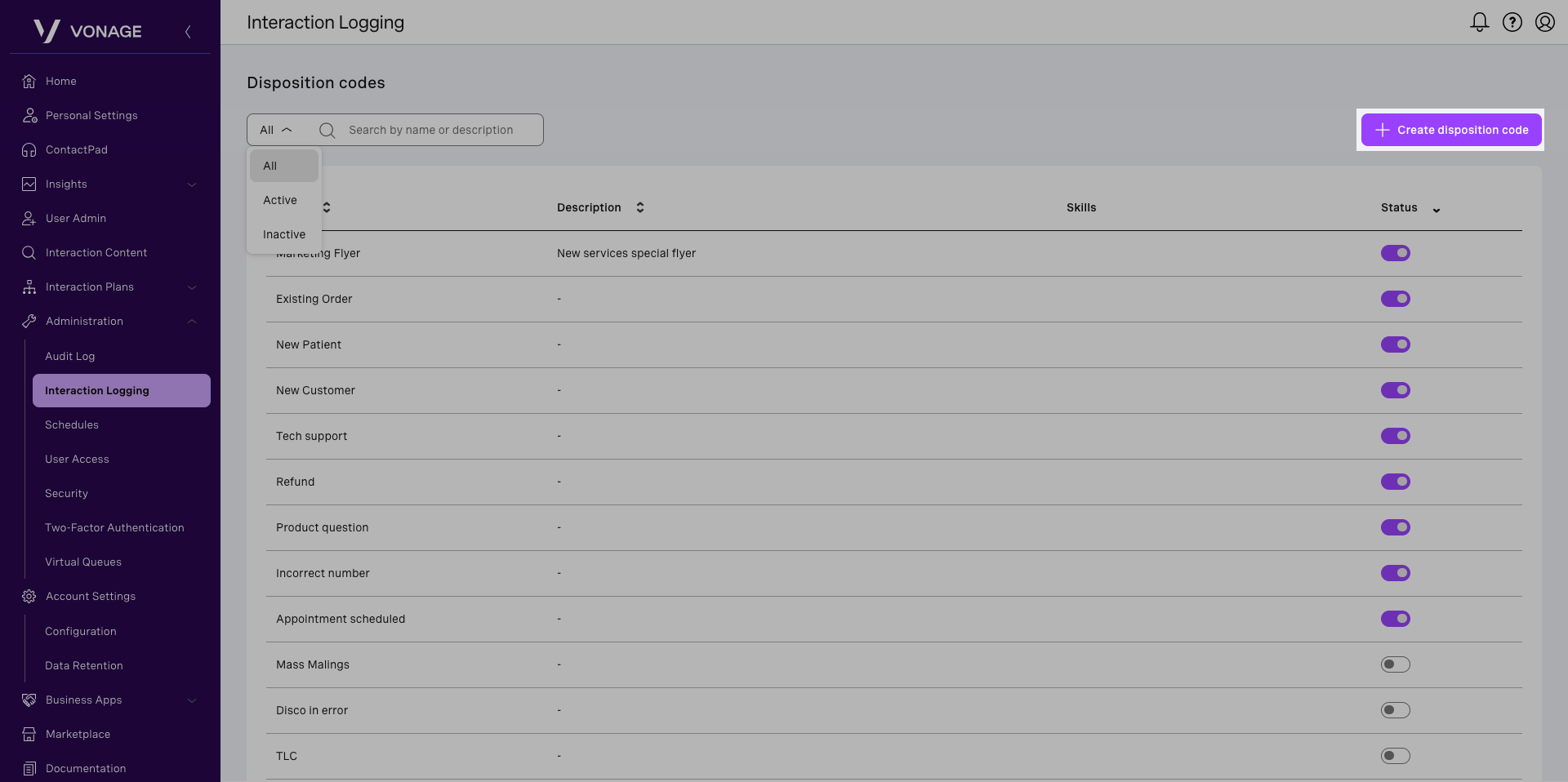
Provide the following information:
- Name – Required, unique, and between 3 and 64 characters. Use a clear name that reflects the code’s purpose.
- Description – Optional. Describe the code’s purpose (up to 200 characters). When using similar disposition codes, the description helps the agents understand the purpose of each code.
- Skills – (Optional). Select up to five skills. If using skill-based routing, only agents within that selected assigned skill will see the specific disposition code.
- Status – New codes are active by default and available to agents.
Click Save.
Edit a disposition code
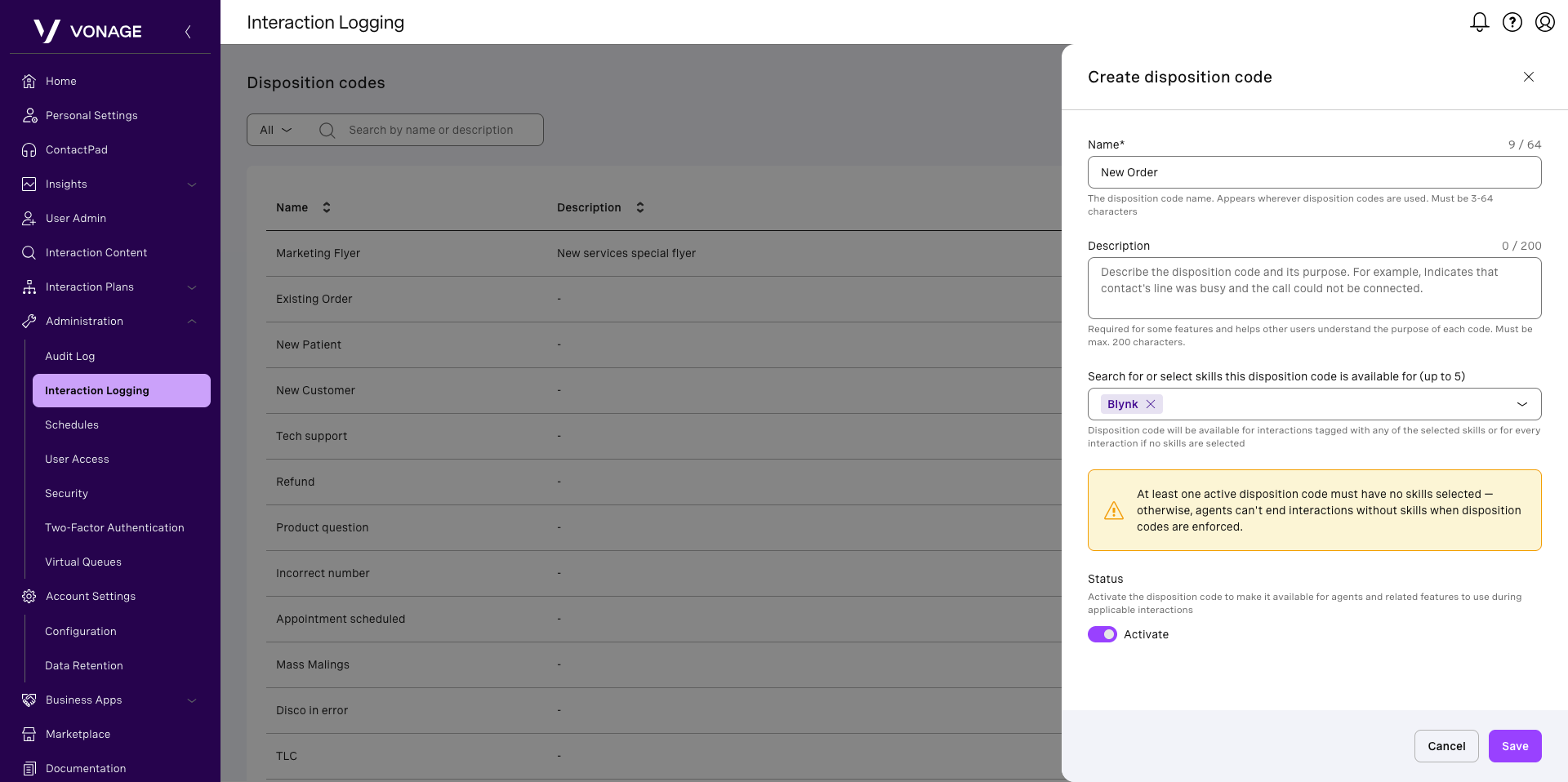
To edit an existing disposition code, click its name or description in the list. The Edit panel opens.
- The name cannot be changed.
- You can update the description, assigned skills, and status.
- To activate a code, toggle on Activate under Status. The code becomes available to agents.
- To deactivate a code, toggle off Activate under Status. The code no longer appears for agents.
Note: You must have at least one active disposition code. If you attempt to deactivate the last active code, an error appears. Disposition codes cannot be deleted at this time.
When finished, click Update.