



Introduction
This guide covers the Vonage Integration Suite (VGIS) for Google (G Suite) browser extension. The Vonage Integration Suite is a managed browser extension that merges both voice and data in key applications for sales, customer service, and business productivity.
Installing Vonage Integration Suite
Users can access steps for installing the Vonage Integration application via the welcome email, or they can manually download it from their default web browser.
To access the steps on downloading the integration application, from the welcome email:
- Click the link found under Step 1. This brings you to the Vonage site.
- From here, navigate to Step 1 and expand this section by clicking on the name.
- Choose your web browser and follow the steps.
- Once completed, you should have downloaded and installed the Vonage Integration Suite.
To successfully download the application via your browser, you must locate the app within the browser’s store.
Google Chrome
If you’re using Google Chrome as your browser:
- In your search field, search for the Chrome Web Store.
- Click the link to access it.
- In the search field, type in Vonage Integration Suite.
- Once the results populate, locate the app and open the page.
- Click the +ADD TO CHROME button.
- A small pop-up window will appear asking to allow the application to be installed.
- Click Add Extension.
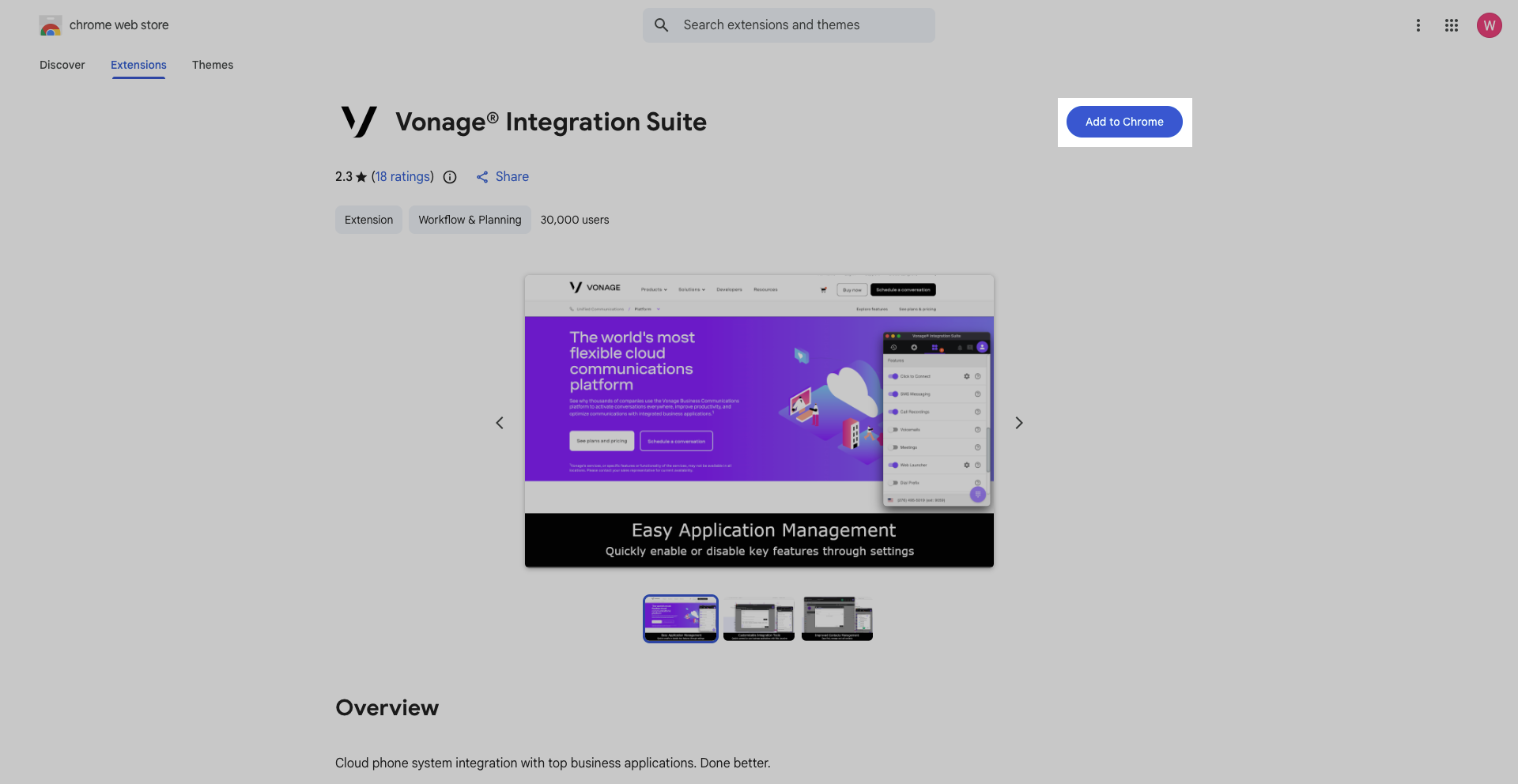
Once finished, you should see a confirmation window as well as the Vonage V icon in your browser toolbar.
Mozilla Firefox
If you’re using Mozilla Firefox as your browser:
- In your search field, search for Firefox Add-ons.
- Click the link to access it.
- In the search field, type in Vonage Integration Suite.
- Once the results populate, locate the app and click the +Add to Firefox button.
- A small pop-up window will appear asking to allow the application to be installed.
- Click the Add button.
Once finished, you should see a confirmation window as well as the Vonage V icon in your browser toolbar.
Microsoft Edge
If you’re using Microsoft Edge as your browser:
- In your search field, search for the Microsoft Store.
- Click the link to access it.
- In the search field, type in Vonage Integration Suite.
- Once the results populate, locate the app and click the Get button.
- Click Launch.
- On the menu to the right, click Turn It On.
Once finished, you should see a confirmation window as well as the Vonage V icon in your browser toolbar.
Opera
If you’re using Opera as your browser:
- In your search field, search for Opera Add-ons.
- Click the link to access it.
- In the search field, type in Vonage Integration Suite.
- Once the results populate, locate the app.
- Click the Add to Opera button.
Once finished, you should see a confirmation window as well as the Vonage V icon in your browser toolbar.
Activate using your Activation Code
Prior to downloading the application, you should have received an email containing the Vonage Integration Suite Installation instructions with an activation code. Please have this email on hand.
To activate your application:
- Click the V icon in your browser’s toolbar to open the application window.
- Click the Setup with code button.
- Proceed to enter your activation code located in your welcome email.
- Click the Submit button.
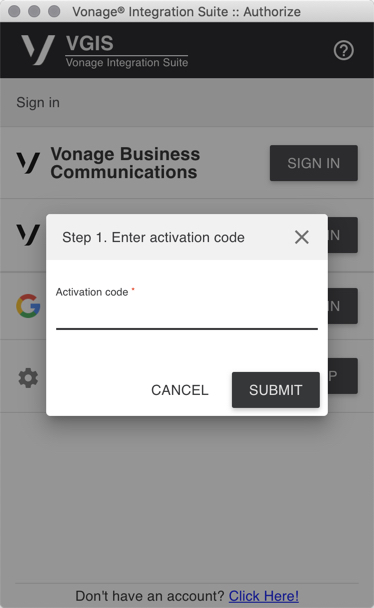
Your Vonage Integration application should now be enabled.
Auto Pop Up Manager
This application allows you to configure auto-pop-up settings to make the use of the application simpler. To access these application settings:
- Click the V icon in your browser’s window.
- Once the application has opened, click the profile avatar in the upper-right corner.
- A drop-down menu appears. Select the settings icon.
- The Setting window will appear.
- Under Global settings, click the Auto Pop Up Manager.
- You have the ability to create rules or criteria for Inbound, Outbound, and Internal interactions.
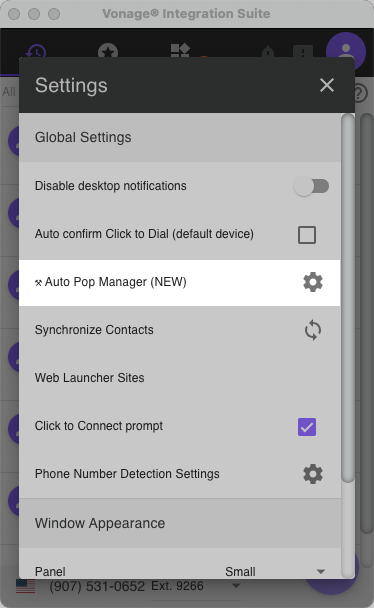
For this guide, let’s create an Internal rule; however, the steps for creating an outbound internal rule are similar. First:
- Click Add Rule under Inbound.
- From the Type drop-down menu, select whether it’s a:
- A call
- An SMS text message
- A voicemail.
- Select Call.
- Proceed to select the State from the corresponding drop-down menu. You have the options to select:
- Answered
- Missed,
- Rejected
- Released
- Ringing.
- Pick Answered.
- Lastly, from the pop-up drop-down menu, select where you would like the pop-up to happen. Either the Activity window, the desktop, or the main panel.
- Choose Activity Window.
- Click Save.
If you wish to add another rule, follow the steps above. Once finished and no other changes are required, click Save.
Signing in to G Suite
Once your activation is complete, you can register G Suite with the Vonage Application. To start:
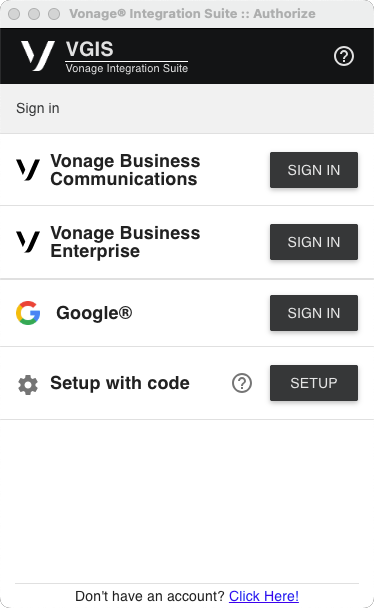
- Click the G-Suite Sign In button.
- Enter your credentials.
- Proceed to click through the options that appear to allow the apps access to G-Suite.
Please Note: Google recently updated requirements for Integration Developers to ensure security in Gmail. These security changes restrict the automatic updating and labeling of features for the Vonage for G Suite product in your Gmail inbox.
To adhere to these restrictions, Vonage has applied the following changes:
- Emails generated by activities in the integration app will now appear as a new message sent from your own email address.
- Labels are not automatically applied, and you cannot manage labels from within the integration.
- However, we have provided you with steps so you can still categorize your Vonage G Suite emails within Gmail. After a one-time import, you can organize your emails as needed.
To start:
- Download and save the VGIS Gmail Voice Call Filter (XML file) on your computer.
- Once complete, navigate to Gmail and open the settings window.
- Next, navigate to Filters and Blocked Address tab.
- Above Import Filters, Click the Import Filters Link.
- Proceed to click the Choose File button.
- Once the system window appears, locate and select the file you just downloaded to your computer.
- You will be directed back to the Google Settings window.
- Click Open File.
- The filters will be imported from the .XML file.
- To apply, click the Create Filters button.
- The process is now complete.
Please Note: Make sure that the checkbox is marked next to each of the filters (four) you want to use.
- Mark Apply New Filters to Existing Email if you would like these filters applied to your existing emails.
- Finally, click Create Filters to finish this process.
You can come back to this page at any time to edit these filters.
Workflow Settings (Admin)
To update Workflow Settings, as an admin:
- Click the V icon to open the application.
- Once the application has opened, click the profile avatar in the upper-right corner. This generates a drop-down menu.
- Select the Config portal icon.
- Once the web portal appears, click the My Account tab. From here:
- You can resend a user’s welcome email if they have misplaced it or deleted it by accident.
- Navigate to the Account Users table.
- Find the user you wish to resend their welcome email to and click their name.
- Under the Configuration Tools column, you will see an option to Resend Welcome Email.
- Click the envelope icon, a resend email dialog box will appear.
- Proceed to select the integrations for the user.
- Click Send.
- The user receives a new welcome email.
To do this, from the My Account dashboard:
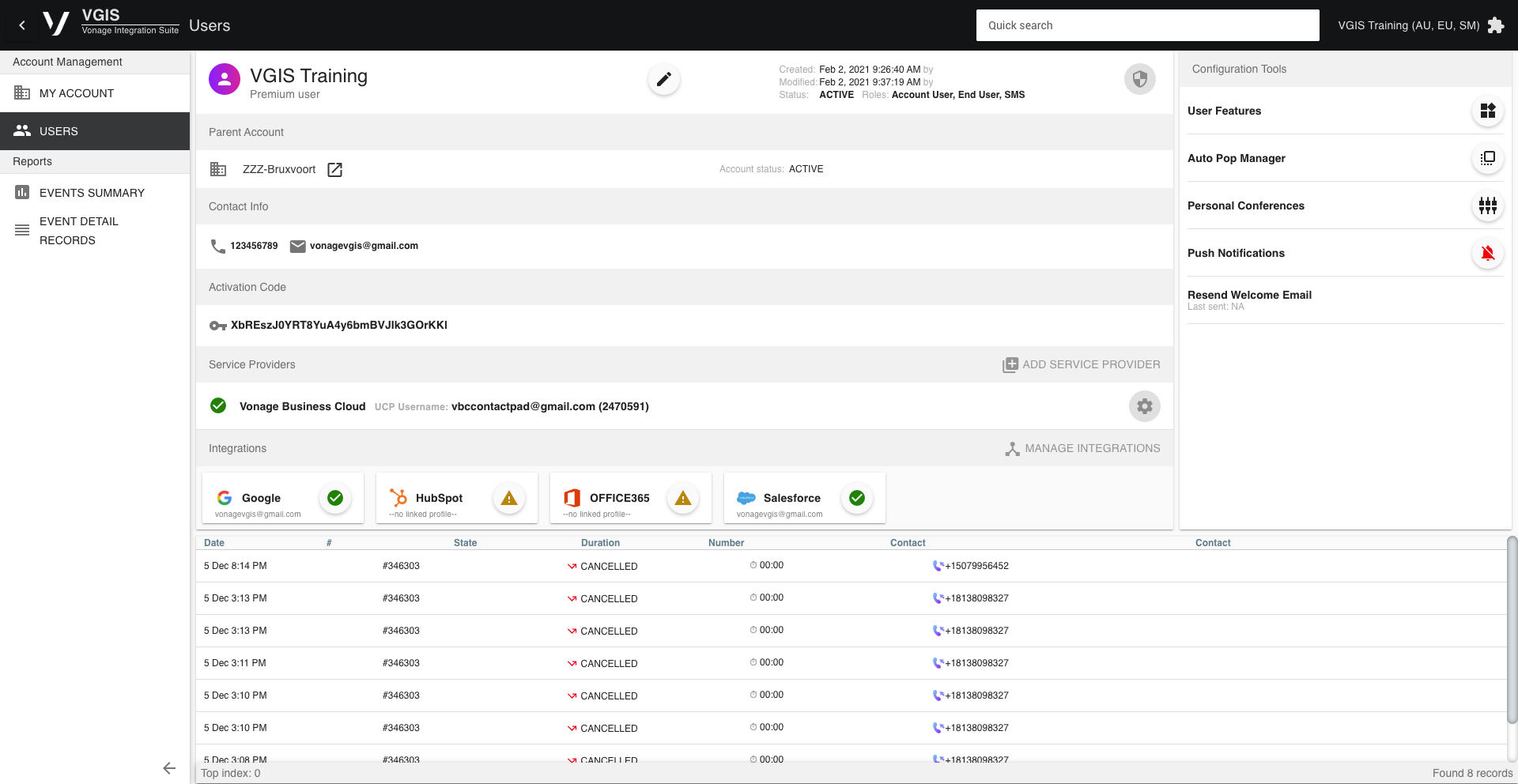
From this page, you can also view the user’s activation code.
User Integration Settings
To manage G Suite User Integration settings:
- Proceed to click the G-Suite button, a dialog box will appear with the following:
- Skip internal calls
- Skip zero duration calls
- Skip when no contact was found
- Skip when multiple contacts are found
- Create activities for each contact
- Create a single activity without a contact
- Skip internal SMS
- Skip when no contact was found
- Skip when multiple contacts are found
- Create activities for each contact
- Create a single activity without a contact
- When complete, click Save.
Call Auto Activity Settings – this option will log calls to G-Suite from the Vonage Application, depending on the settings you have excluded by clicking on the following:
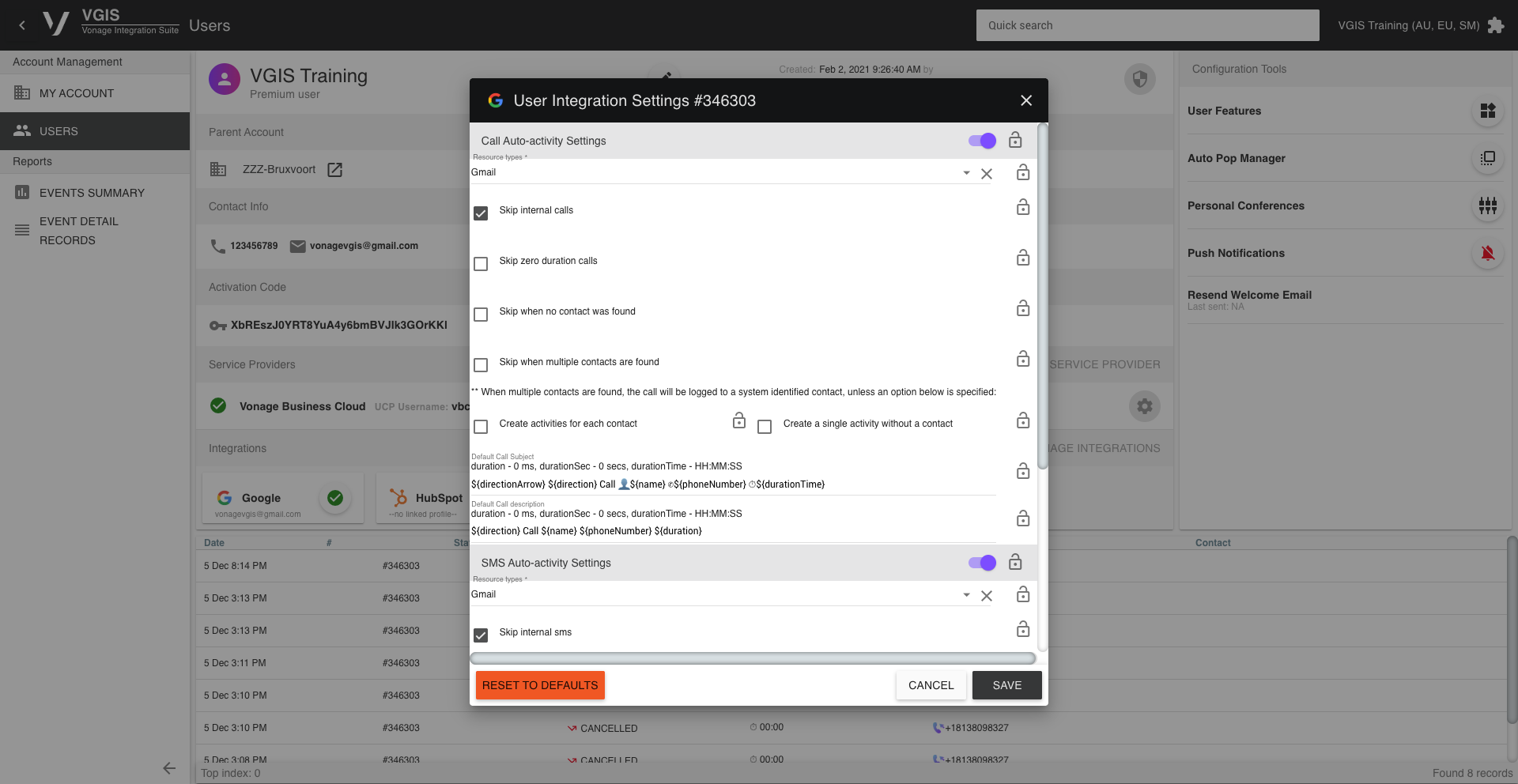
When multiple contacts are found, the call will be logged to a system identified contact, unless an option below is specified:
SMS Auto Activity Settings – this option will log SMS texts to G-Suite from the Vonage Application, depending on the settings you have excluded by clicking on the following:
When multiple contacts are found, the sms will be logged to a random contact, unless an option below is specified:
Click To Dial
The Vonage Integration app includes a Click to Dial function. With this feature, when numbers appear on your screen, like on a website’s contact us page, you can simply click the phone number and enable a call through your Vonage application:
To use Click to Dial, navigate to the Contact Vonage Customer Service webpage. You will notice a phone icon to the left:
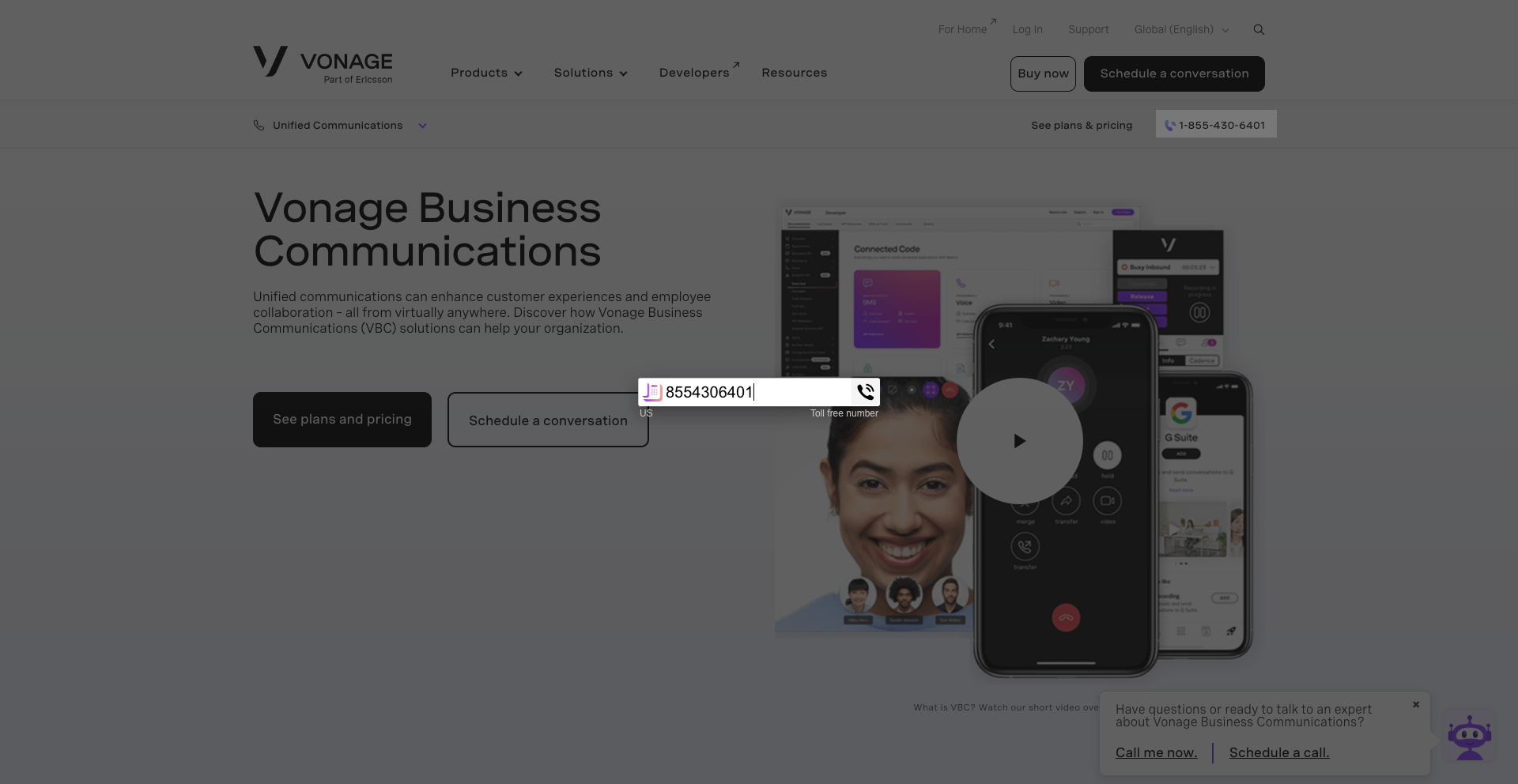
- Click the phone icon. A dialog box will appear with the number in place.
- Proceed to the Click to Dial button.
- Once clicked, a call will ring your Vonage Device; Answer your Vonage Device for the call to be completed. Your call will now be placed.
You can also send SMS messages through the Click to Dial screen. To send an sms message, navigate to the Contact Vonage Customer Service webpage. You will notice a phone icon to the left:
- Click the image, a dialog box will appear with the number in place.
- You will see two icons to the left: the SMS icon and the phone icon. Click the SMS icon to start your message.
- Enter the message in the respective field.
- Once complete, click the arrow to send.
Please Note: This message will only be received by the recipient if their number allows SMS messages.
Make Calls or SMS Messages
To make a call, from the Vonage application:
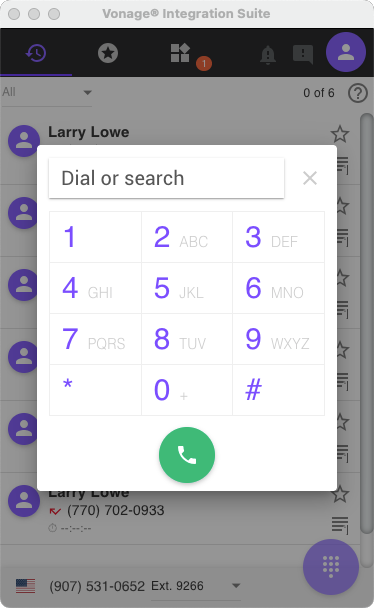
- Click the Dial Pad icon.
- Enter a valid 10-digit number.
- When complete, click the green call button.
The Vonage Integration app includes an SMS function. With this feature, you can send and receive SMS messages. To send an SMS message, from the Vonage application:
- Click the Dial Pad icon, the dial pad will appear.
- Proceed to click the SMS icon.
- Enter a valid 10-digit number and message.
- When complete, click the green send button. All incoming messages to your Vonage application can be viewed through the Call History or Call Activity windows.
Reports
To run Reports through the Vonage app:
- Click the V icon to open the application.
- Once the application has been opened, click the profile icon in the upper-right corner.
- This should generate a drop-down menu.
- Select the Reports icon, and your browser should open to the report generator.
You have the option to run a Report Summary or a Detailed Report. Let us walk you through both.
To run a Summary Report, make sure the Summary tab is selected:
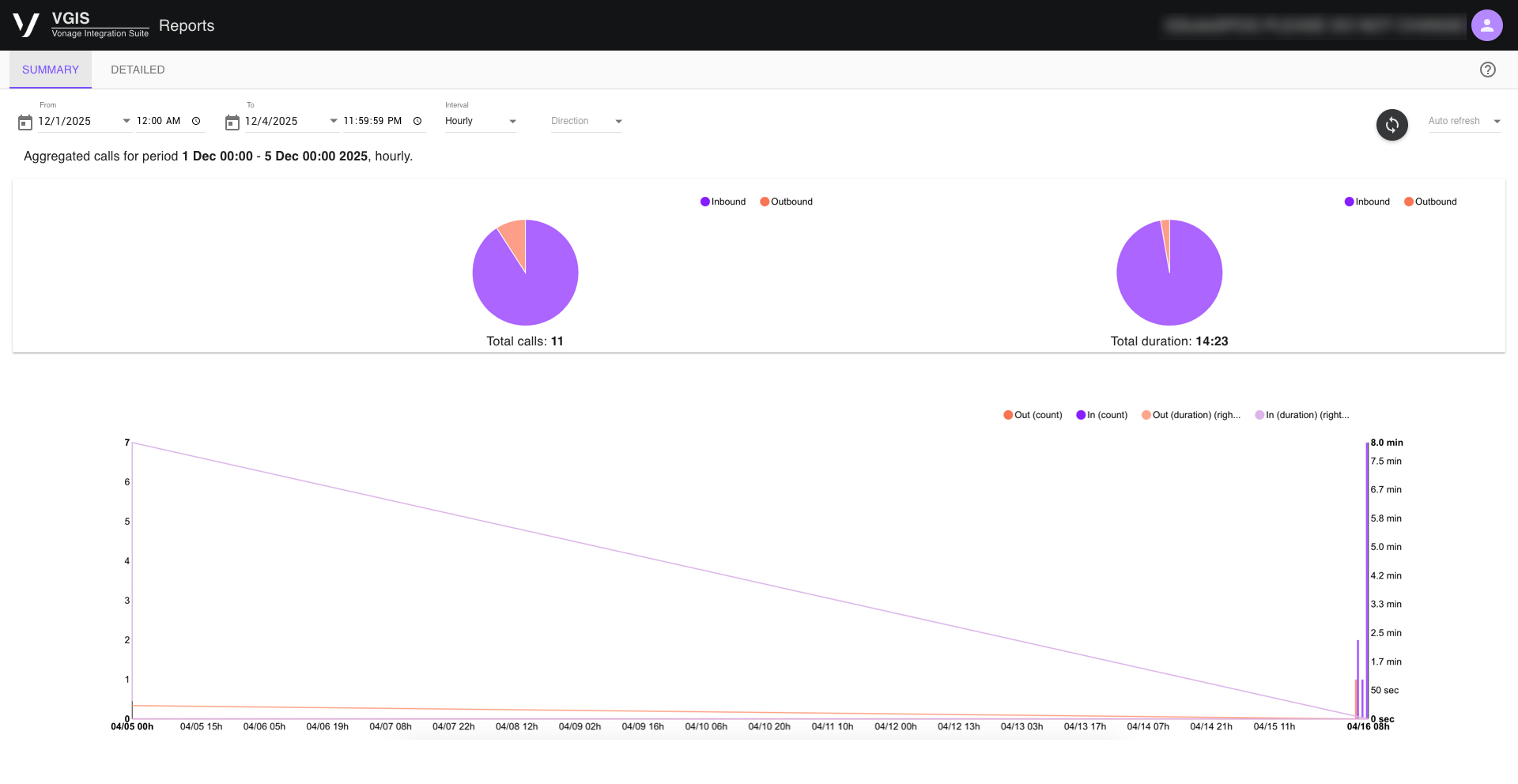
- Click the From drop-down menu and select the date you wish this report to start.
- Proceed to select the date you want the report to end on from the To drop-down menu.
- Then, select the time interval from the drop-down menu. This could be hourly, weekly, or monthly.
- Finally, select which calls you would like to monitor, from ALL, Incoming, or Outgoing, from the drop-down menu.
As you enter the corresponding information, data will appear within the table. If you would like the data to refresh on its own, from the auto-refresh drop-down menu, select the time frame you wish it to renew.
To run a Detailed Report, make sure the Detailed tab is selected:
- Choose the date and time, the hours and minutes, you would like the report to start from. Each option has its own drop-down menu.
- Proceed to select the date and time you want the report to end on from the drop-down menus associated with the respective areas.
- Finally, select which calls you would like to monitor from the Disposition drop-down menu. You can select one or multiple options, including Answered, Missed, Rejected, and Cancelled.
As you enter the corresponding information, data will appear within the table. If you would like the data to refresh on its own, from the auto-refresh drop-down menu, select the time frame you wish it to renew.
Adding a Contact
On the G Suite tab, a + will appear under the create contacts section in the call notation window when there is no match for a dialed or received telephone number.
- Proceed to click Create contact.
- Populate the relevant fields such as name, company, and phone numbers. Click the Show All button to expand 13 additional contact fields.
- When complete, click the Create button to save. The new contact is added to G Suite.
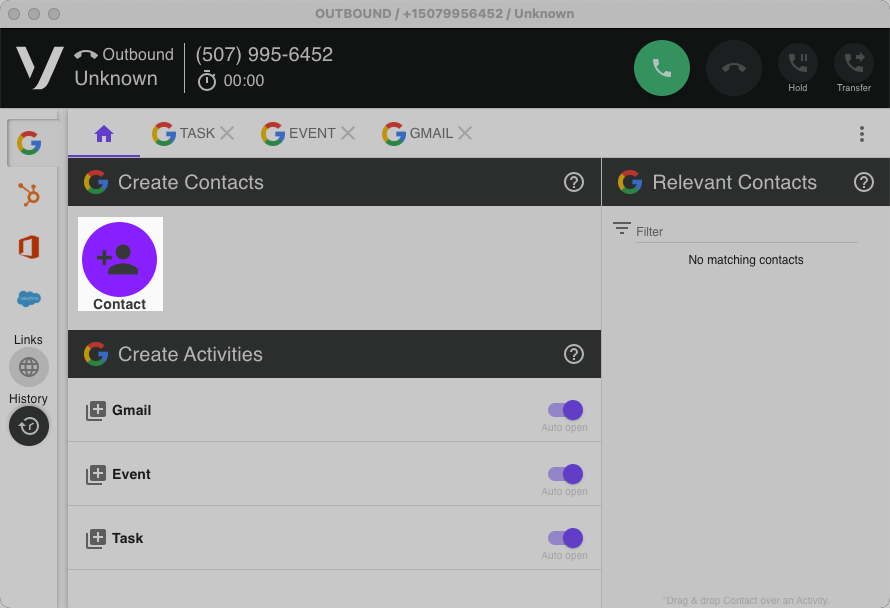
Please Note: The Name field is a mandatory field within the Adding a Contact window. There are additional fields, such as emails, events, and websites, where you are able to input user information.
Please Note: When creating or editing contacts directly within the application but outside the Call Log window, synchronization may take 12 to 24 hours.
Adding Activities
You can Send Emails or add Events or Tasks via the Home icon in the Contacts Dialog box. These items are known as Activities and are a highly effective way to keep updated information on contacts. For this tutorial, we will be adding an Event to this contact.
- Click the Home icon.
- Make sure it is the contact you wish to use.
- Then, click the Event tab in the Activity box. A dialog box will appear.
- If the application recognizes the phone number, the name will display in the Call Log window.
- In instances where there are various matches to the telephone number, the drop-down menu allows you to make the appropriate contract selection before saving the note to the application.
- Once finished, click Create. Your event is saved for this contact and shown in your Google Calendar.
Once the window appears, you have the following fields.
Title – This is automatically filled out if the contact is recognized. If not, you may have to enter the information manually.
Start Time – This is the start of the event. Use the drop-down menu to select the appropriate date and the arrows to select the appropriate time when highlighted.
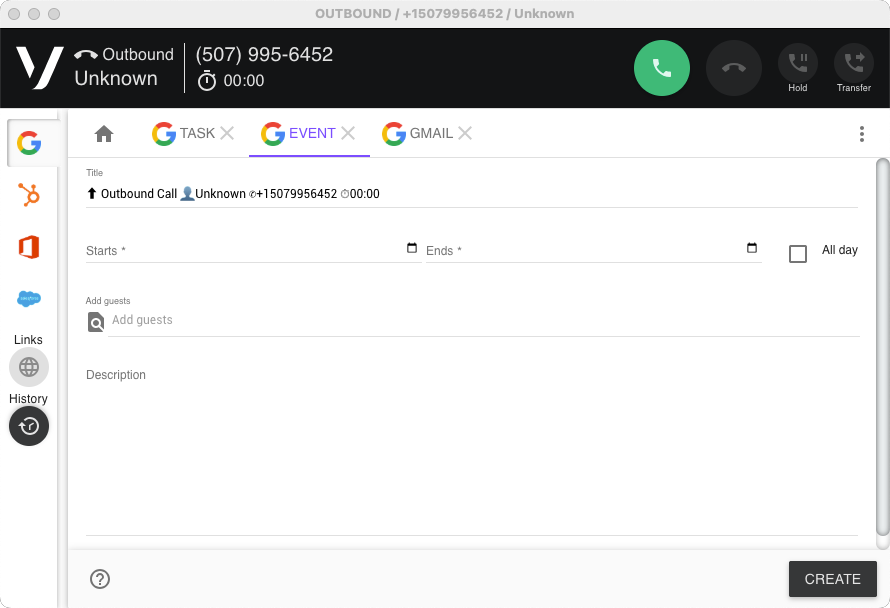
End Time – This will be the end of the event. Use the drop-down menu to select the appropriate date and the arrows to select the appropriate time when highlighted.
Add Guests – This field allows you to add additional guests to this event via email address.
Description – This field allows you to give a detailed description of the event, allowing you to provide any information the guest may need to view before the meeting.